HEIC (High-Efficiency Image Container) is Apple’s next-generation image format introduced in iOS 11, utilizing advanced HEVC (H.265) video compression technology to maintain excellent image quality while significantly reducing file size. Compared to traditional JPEG format, HEIC files can save approximately 50% storage space while supporting richer color depth and dynamic range. However, this advantageous format has brought many inconveniences for Windows users, Android users, and cross-platform photo sharing. This guide will provide a detailed introduction to HEIC format and various practical conversion methods to help you easily resolve HEIC file compatibility issues.
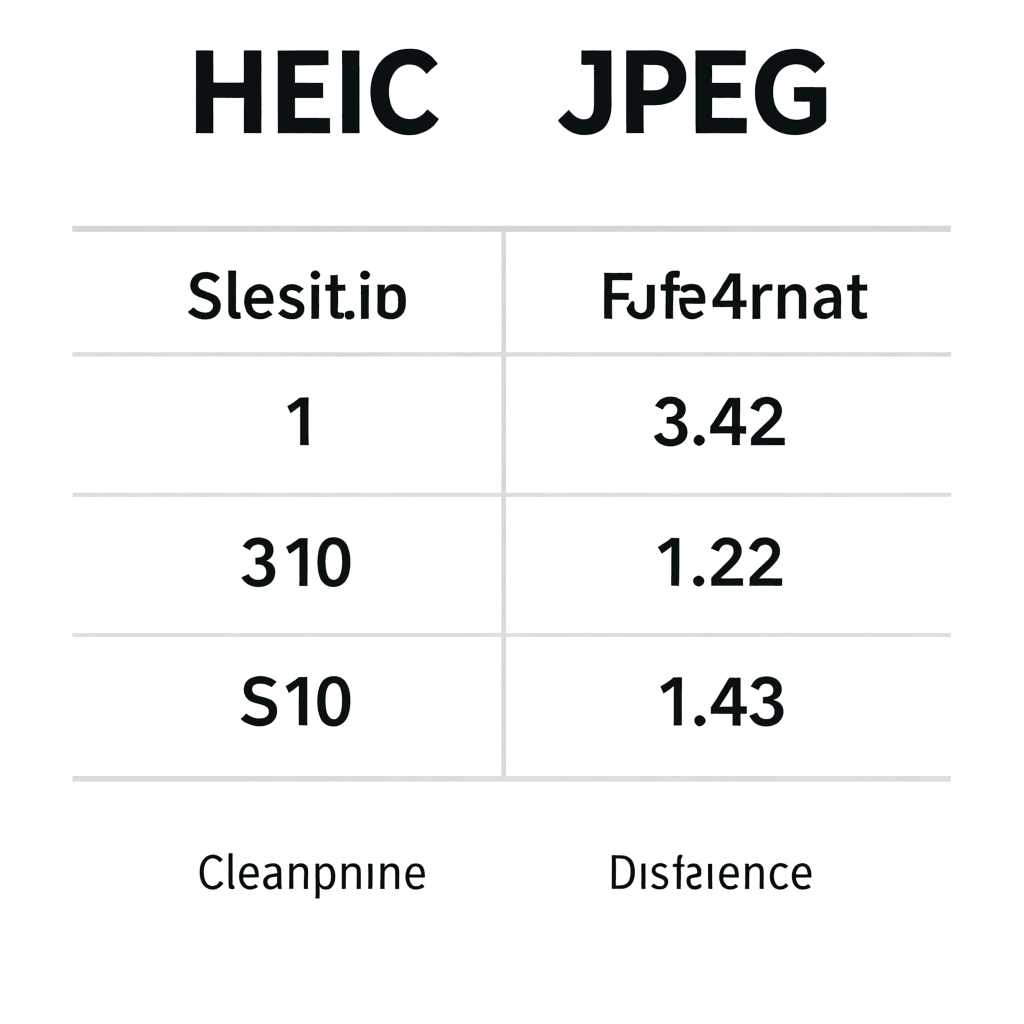
Why Use HEIC Format?
The birth of HEIC format stems from the increasingly tight storage space demands of mobile devices. When you take a 12-megapixel photo, JPEG format typically requires 3-5MB of storage space, while HEIC format can compress this to 1.5-2.5MB. This means you can store nearly twice as many photos on your iPhone without sacrificing too much image quality. Additionally, HEIC supports Live Photos, HDR effects, and more precise image editing features. Within Apple’s ecosystem, HEIC works seamlessly, but once you need to share these photos to non-Apple devices or editing software, problems arise. Many Windows computers cannot open HEIC files by default, and most Android devices cannot either. Some older versions of image viewers even refuse to display such files. This format compatibility issue has prompted many users to look for HEIC conversion solutions.
Opening HEIC Files on Windows
For Windows 10 and Windows 11 users, Microsoft has provided native support, but specific conditions must be met. First, ensure your system is updated to the latest version, as older Windows versions may not recognize HEIC. Second, you need to install the official “HEIF Image Extensions” and “HEVC Video Extensions” plugins from Microsoft Store. After installation, the Windows Photos app will be able to open HEIC files directly, and you can also preview thumbnails in File Explorer. However, even with official support, some third-party applications still cannot recognize HEIC files. At this point, you need to use dedicated conversion tools. Notably, these official extensions may require payment (approximately $0.99) to get full functionality.
Online HEIC Conversion Tools
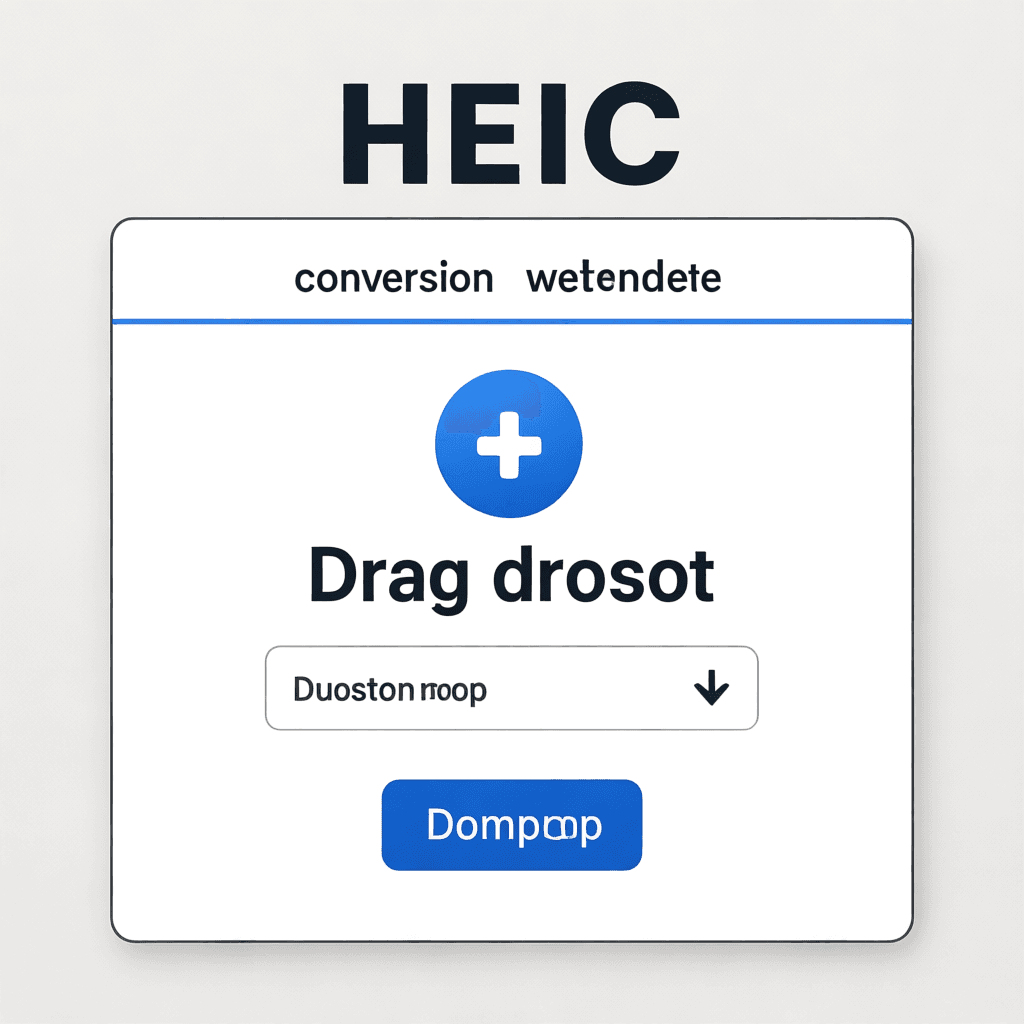
When you need to quickly convert HEIC files in a browser, online tools are the most convenient choice. CloudConvert is currently one of the most popular HEIC conversion services, supporting batch conversion with multiple file processing and providing various output formats including JPEG, PNG, and WebP. The free version allows 25 file conversions per day, which is sufficient for most users. Another recommended tool is Convertio, which offers similar conversion functionality and supports importing files directly from Google Drive or Dropbox, making it ideal for users who need to process large numbers of photos.
Desktop Software Solutions
For users who need to convert HEIC files frequently, desktop software provides more stable and efficient solutions. CopyTrans HEIC is one of the most well-known HEIC viewers for Windows. It not only allows Windows Explorer to display HEIC thumbnails but also includes an independent image viewer supporting basic editing functions like cropping and rotation. Another excellent choice is iMazing HEIC Converter, developed by the well-known iOS management software iMazing, offering batch conversion functionality and support for custom output quality and dimensions.
Best Practices for Batch Converting HEIC Files
When you need to convert large numbers of HEIC photos (such as exporting all photos from an iPhone backup), manually converting one by one is impractical. In this case, batch conversion tools are your best choice. The best approach is to use batch functions of desktop software like iMazing HEIC Converter or CopyTrans HEIC, where you can select an entire folder at once and let the software automatically process all files. Another efficient workflow is to use Python scripts with Pillow or imageio libraries to create a fully automated conversion script that can automatically categorize converted files by date or album.
Frequently Asked Questions
How to convert HEIC to JPEG for free?
You can use free online tools like CloudConvert, Convertio, or Zamzar, which provide limited free conversions daily. You can also use the Preview app on Mac to open HEIC files and export as JPEG by choosing “File > Export” and selecting JPEG format.
Is HEIC quality better than JPEG?
At the same file size, HEIC usually provides better quality because it uses more advanced compression algorithms. However, converting HEIC to JPEG may cause slight quality loss depending on conversion settings and target quality parameters.
Why can’t my Windows computer open HEIC files?
Make sure you have installed the HEIF Image Extensions from Microsoft Store. Search for and install this plugin. Some devices may also need to install HEVC Video Extensions.
Can I open HEIC files on Android phones?
Most Android devices don’t natively support HEIC format. You can install third-party apps like HEIC Viewer to view HEIC files, or convert HEIC to JPEG which Android handles more commonly.
What’s the best way to batch convert HEIC photos?
You can use desktop software like CopyTrans HEIC or iMazing HEIC Converter for batch conversion. These tools support selecting multiple files or entire folders at once for unified conversion. Advanced users can also use Python scripts with image processing libraries for fully automated batch conversion.
Conclusion
HEIC format represents the future trend of mobile photography storage efficiency, but cross-platform compatibility issues remain the biggest obstacle. Through the methods introduced in this guide, you can choose the most suitable solution based on your needs: if you only occasionally convert a few files, online tools are the quickest choice; if you need to frequently process large numbers of photos, desktop software will provide better efficiency and stability; if you are a professional photographer or need advanced editing features, professional image software is the best choice. Regardless of which method you choose, the key is to understand HEIC’s advantages and limitations, and make wise decisions based on actual usage scenarios.