Ever found yourself staring at a screenshot, photo, or scanned document and wishing you could just copy and paste the text inside it? Whether you are a student trying to extract notes from a whiteboard photo, a business professional digitizing paper documents, or anyone dealing with image-based text, the solution is simpler than you think. Converting images to text—also known as Optical Character Recognition (OCR)—has become incredibly accessible, with free online tools that can extract editable text from almost any image in seconds.
In this comprehensive guide, we will walk you through everything you need to know about converting image to text online for free in 2026. From understanding how OCR works to choosing the best tools, from practical use cases to advanced tips, we have got you covered. Let us dive in.
What Is Image to Text Conversion?
Image to text conversion, commonly referred to as OCR (Optical Character Recognition), is a technology that analyzes images containing textual information and converts the visible characters into machine-readable text. This process enables users to edit, search, copy, and manipulate text that originally existed only in image format.
The technology has come a long way since its early days. Modern OCR engines use advanced machine learning algorithms and neural networks to recognize text with remarkable accuracy, even handling multiple fonts, handwriting, and various image qualities. When you convert image to text, you are essentially teaching a computer to read visual information and translate it into digital characters.
There are two primary categories of image to text tools: standalone OCR software installed on your computer, and online OCR services that work directly in your web browser. The latter has gained significant popularity because it requires no installation, works across all devices, and typically offers free tiers that are sufficient for most everyday needs.
Why Use Free Online OCR Tools?
The availability of free online OCR tools has transformed how we handle document workflows. Here are compelling reasons to use these services:
Accessibility and Convenience: Free online OCR tools eliminate the need to install software or purchase expensive licenses. You can convert jpg to text directly from your browser, whether you are using a computer, tablet, or smartphone. This is particularly valuable when you need to extract text urgently and do not have your usual tools available.
Cost-Effectiveness: For occasional users, investing in premium OCR software does not make sense. Free online tools provide adequate functionality for most basic to intermediate needs without any financial commitment. Many services also offer premium upgrades for users who need advanced features.
Cross-Platform Compatibility: Unlike desktop applications that may be limited to specific operating systems, online OCR tools work seamlessly across Windows, macOS, Linux, iOS, and Android. This flexibility ensures you can always access your text extraction capabilities regardless of your device.
Instant Results: Modern online OCR services process images in seconds, delivering editable text almost immediately. This speed is crucial when dealing with multiple documents or time-sensitive tasks.
Continuous Improvement: Online OCR services regularly update their recognition engines, meaning you automatically benefit from improvements without taking any action. The underlying AI models continuously learn and become more accurate over time.
How to Convert Image to Text: Step-by-Step Guide
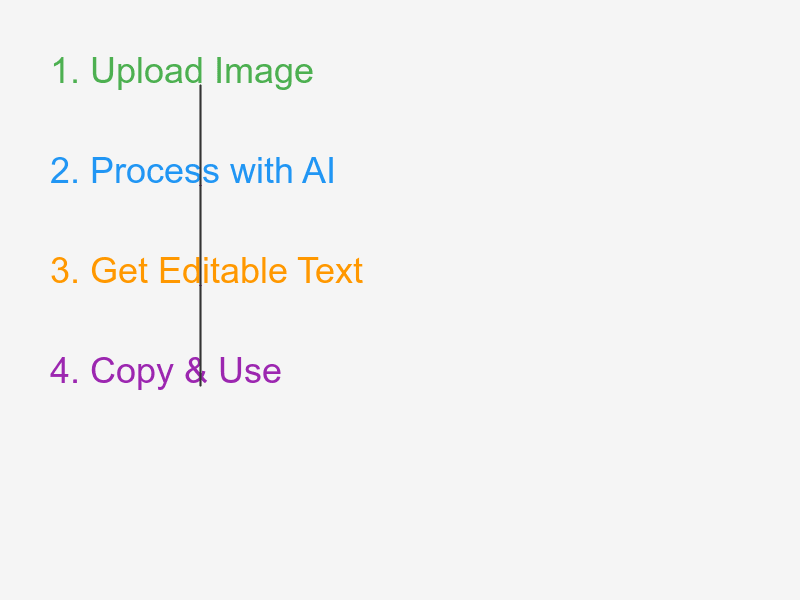
Converting an image to text online is straightforward, but following best practices ensures optimal results. Here is our recommended process:
Step 1: Prepare Your Image
Before uploading your image, take a moment to ensure it is suitable for OCR processing. The quality of your input significantly impacts the accuracy of the output. Use these tips:
- Improve readability: Ensure the text is clearly visible and not blurred
- Adjust lighting: Make sure there are no harsh shadows or glare on the text
- Crop strategically: Focus on the text-containing area, removing unnecessary margins
- Use high resolution: Higher resolution images generally yield better results
Common image formats like JPG, PNG, and BMP work well with most OCR tools. If you are working with scanned documents, ensure they were scanned at a reasonable resolution (at least 150 DPI recommended).
Step 2: Choose Your OCR Tool
Select a reliable free online OCR service. Look for tools that offer:
- Support for multiple image formats
- Language recognition capabilities
- No registration required for basic use
- Reasonable daily usage limits
- Clean, user-friendly interface
Many popular options exist, including Google Drive built-in OCR, Microsoft OneNote picture reading feature, and dedicated online OCR websites. Each has strengths, so you might want to test a few to find your preferred choice. If you are also interested in image compression for better OCR results, check out our complete guide to client-side image compression.
Step 3: Upload and Process
Once you have selected your tool, uploading is typically as simple as dragging and dropping your image or clicking to browse your files. After uploading, initiate the conversion process. Most tools show a progress indicator during processing.
Step 4: Review and Edit
After processing, carefully review the extracted text. While modern OCR is highly accurate, it is not perfect—particularly with unusual fonts, poor image quality, or complex layouts. Make necessary corrections to ensure accuracy.
Step 5: Export Your Text
Finally, copy the extracted text to your clipboard or download it in your preferred format. Many tools offer export options including plain text, Word documents, or PDF files.
Best Practices for Accurate Image to Text Conversion
To maximize accuracy when you convert image to words online, consider these professional tips:
Image Quality Matters Most: The single biggest factor affecting OCR accuracy is input image quality. Always use clear, well-lit images with minimal noise. If possible, scan documents at 300 DPI for optimal results. For tips on preparing images, our image preparation guide offers helpful insights.
Pre-Process When Needed: Many OCR tools include basic image enhancement features, but you can also preprocess images yourself. Adjusting contrast, converting to grayscale, and straightening rotated text can significantly improve recognition rates.
Handle Multi-Column Layouts Carefully: Documents with multiple columns can confuse OCR engines. If your tool struggles with complex layouts, consider processing each column separately or using a tool specifically designed for document OCR.
Verify Special Characters and Formatting: Numbers, symbols, and formatting often require extra attention. Always double-check these elements in your extracted text, as they are common sources of OCR errors.
Use Language Settings Appropriately: Most OCR tools allow you to specify the text language. Selecting the correct language improves accuracy substantially, especially for languages with unique characters or diacritics.
Common Use Cases for Image to Text Conversion
Understanding practical applications helps you leverage OCR effectively:
Digitizing Printed Documents: Convert old printed documents, books, or articles into editable digital text. This is invaluable for creating searchable archives or republishing content.
Extracting Text from Screenshots: Capture text from software interfaces, websites, or error messages that do not allow direct copying. This is particularly useful for technical support and documentation.
Processing Invoices and Receipts: Businesses frequently need to extract data from receipts and invoices for accounting purposes. OCR automates what would otherwise be manual data entry.
Converting Handwritten Notes: While more challenging, modern OCR can handle certain types of handwritten text, especially when the handwriting is clear and consistent.
Accessibility Purposes: Converting image-based content to text makes information accessible to screen readers, benefiting users with visual impairments.
Frequently Asked Questions
What is the best free online OCR tool in 2026?
Several excellent free options exist in 2026. The best tool depends on your specific needs—some excel at document OCR, while others are better for quick extractions from screenshots. Popular choices include OnlineOCR, IOCR, and cloud-based services like Google Drive and Microsoft OneNote. We recommend testing a few to find the best fit for your use case.
Can I convert image to text on my mobile phone?
Absolutely! Most free online OCR tools are mobile-responsive and work directly in your mobile browser. Additionally, many dedicated mobile apps offer OCR functionality, with some offering offline capabilities. Whether you use iOS or Android, you have numerous options to convert image to text on the go.
How accurate is free online OCR?
Modern free online OCR tools achieve 95-99% accuracy on clear, well-printed text. Accuracy decreases with poor image quality, unusual fonts, handwriting, or complex layouts. For critical documents, always review and correct the extracted text. The technology continues to improve rapidly with advances in AI and machine learning.
Does converting image to text support multiple languages?
Yes, most modern OCR tools support extensive language libraries. Common languages like English, Spanish, French, German, Chinese, Japanese, and Korean are widely supported. Some tools offer 100+ language options. When using OCR, always select the appropriate language setting for best results.
Is my data safe when using free online OCR tools?
This varies by service. Reputable platforms use encryption and do not retain your uploaded images longer than necessary for processing. However, avoid uploading highly sensitive or confidential documents to unknown services. For sensitive work, consider using desktop OCR software that processes locally or choose trusted enterprise-grade online services with clear privacy policies.
Conclusion
Converting image to text online free has never been easier, thanks to advancing OCR technology and the proliferation of web-based tools. Whether you need to convert jpg to text for academic research, business documentation, or everyday convenience, free online OCR services provide a powerful solution without costing a dime.
Remember to prioritize image quality for best results, choose the right tool for your specific needs, and always review extracted text for accuracy. With these practices in mind, you are well-equipped to handle any image-to-text conversion task efficiently.
Ready to try it yourself? Start with a free online OCR service today and experience the convenience of extracting editable text from images in seconds. Your digital workflow will thank you.