Understanding how to convert image to base64 encoding has become increasingly important for web developers, designers, and content creators. Base64 encoding allows you to embed images directly into HTML, CSS, or JSON files, eliminating the need for separate image requests and improving page load times. Whether you are building a website, creating email templates, or working with data URIs, mastering the image to base64 conversion process is a valuable skill.
This comprehensive guide will walk you through everything about base64 generator from image tools, including how they work, why you might want to use them, and the best practices for implementing base64 encoded images in your projects. By the end, you will understand exactly how to convert image to base64 for any use case.
What is Base64 Encoding and Why Does It Matter?
Base64 is a binary-to-text encoding scheme that represents binary data in ASCII string format. When you use a base64 generator from image tools, the binary data of your image (those ones and zeros that make up the file) gets converted into a string of characters that can be safely transmitted over protocols designed for text. This encoding method uses 64 different ASCII characters, hence the name Base64.
The primary benefit of base64 encoding images is that it allows you to embed images directly within your code. Instead of referencing an external image file with an tag pointing to a URL, you can include the entire image data as a base64 string. This approach is particularly useful for small images like icons, logos, or small graphics where the overhead of an additional HTTP request might actually be larger than the image itself.
Web developers often use base64 encoding when working with email templates, since many email clients block external image requests or load them slowly. By embedding images as base64, you ensure they appear immediately without requiring separate downloads. Similarly, mobile applications sometimes use base64 encoded images to reduce the number of network requests and improve perceived performance.
How to Convert Image to Base64 Using Online Tools
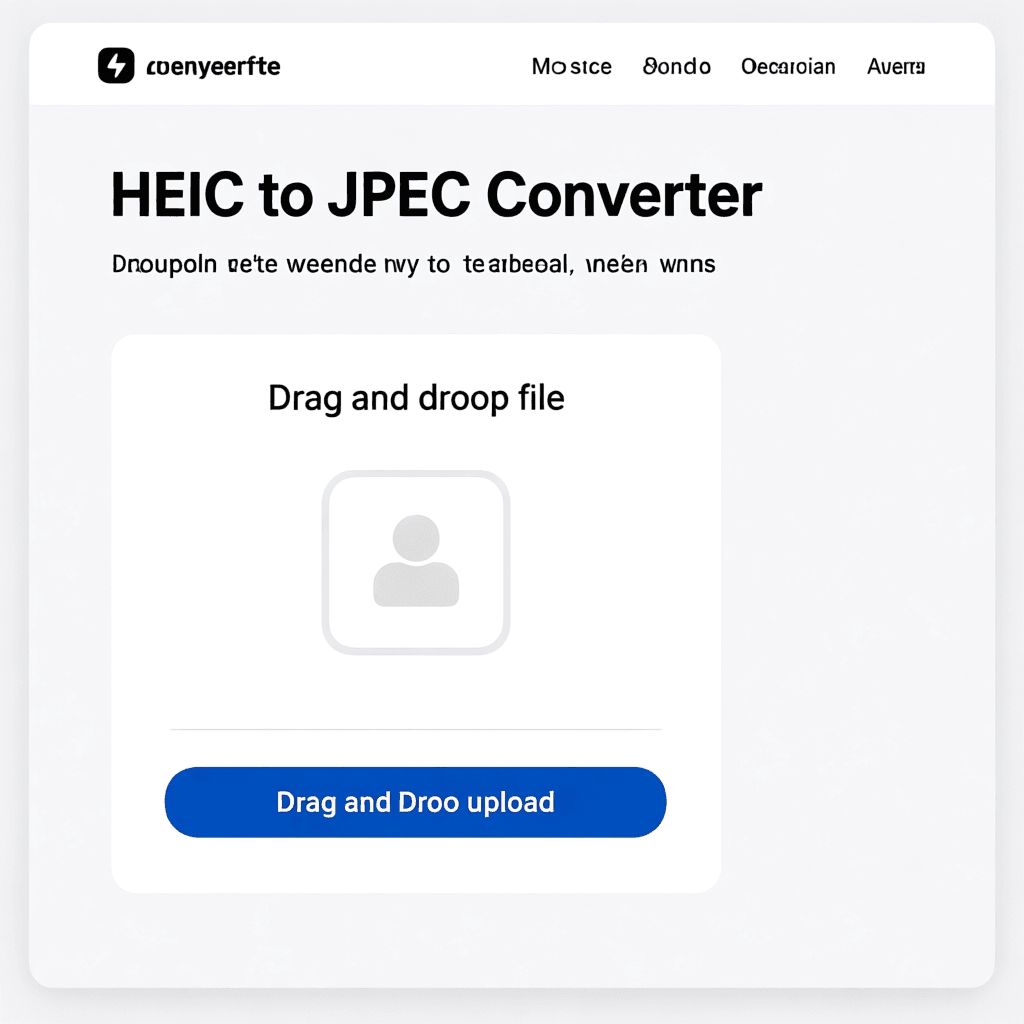
Using an online converter image to base64 tool is straightforward and requires no technical expertise. Most base64 generator from image services work similarly: you either drag and drop your image file onto the webpage or click to browse and select your file. Within seconds, the tool processes your image and displays the base64 encoded string that you can copy and use.
When you need to convert image to base64, look for tools that support multiple image formats including PNG, JPG, GIF, SVG, and WebP. The best online converter image to base64 services will also provide options for output formatting, such as raw base64 string, data URI format (which includes the image MIME type), or HTML-ready code that you can directly paste into your documents.
The typical workflow for converting images looks like this: first, select your image file (or drag and drop it); second, choose your preferred output format; third, copy the generated base64 string; and finally, paste it into your code wherever you need the image. Many tools also offer preview functionality so you can verify the image looks correct before copying the code.
Understanding Data URIs and Their Syntax
A data URI is the complete base64 encoded image prefixed with information about the image type. The standard format looks like: data:image/png;base64,iVBORw0KGgoAAAANSUhEUgAAAAU. The format breaks down into three parts: the data: prefix, the MIME type (like image/png or image/jpeg), and the base64 encoded content after the comma.
Understanding this syntax is crucial when you learn how to convert image to base64 for web use. The MIME type must match your actual image format—if you are encoding a PNG image, your data URI must start with data:image/png;base64. Using the wrong MIME type will result in broken images that will not display properly in browsers.
When using an online converter image to base64 tool, most will automatically include the correct MIME type and prefix in their output. However, it is helpful to understand what these prefixes mean so you can troubleshoot if your embedded images are not displaying correctly. The data URI approach works in all modern browsers and is supported by virtually all web technologies.
Practical Applications of Base64 Encoded Images
The most common use case for base64 encoded images is reducing HTTP requests in web development. Each external resource on a webpage requires a separate request from the browser to the server, which adds latency. By embedding small images directly in your HTML or CSS, you can significantly reduce page load times, especially for critical above-the-fold content.
Email developers rely heavily on base64 encoding because many email clients and privacy-focused inbox services block external images by default. When you embed images using base64, they load automatically without triggering spam filters or requiring users to explicitly click show images. This ensures your email designs look complete and professional from the first impression.
Another practical application involves working with APIs that accept image data as text. Rather than uploading binary files, you can send base64 encoded images as JSON payloads. This is particularly useful when building mobile applications or working with serverless functions where managing file uploads adds complexity to your architecture.
Best Practices for Using Base64 Encoding
While base64 encoding offers many benefits, it is important to use it appropriately. The general rule is that base64 encoded images are best for small files—typically under 4-8KB. Larger images become significantly larger when base64 encoded (approximately 33% larger, in fact), which can actually slow down page loading if used excessively.
When converting images to base64, always optimize your images first. Use appropriate compression, choose the right format (PNG for graphics with transparency, JPG for photographs), and resize images to exactly the dimensions needed. This optimization ensures your base64 strings are as small as possible while maintaining visual quality.
Consider caching implications when deciding whether to use base64 encoding. External image files can be cached by browsers, but base64 encoded images embedded in your HTML cannot be cached separately—they are part of the HTML document itself. This means every page load requires downloading the base64 data again, which can increase bandwidth usage for frequently accessed pages.
Technical Implementation Details
In HTML, you use base64 encoded images like any other image source:  . The entire base64 string becomes the src attribute value, making the image appear as if it were loaded from an external file.
For CSS backgrounds, the syntax is similar: background-image: url(data:image/png;base64,iVBORw0KGgoAAAANSUhEUgAAAAU…). This approach is particularly useful for small icons or repeated background patterns that would otherwise require multiple image requests.
When working with JavaScript, you can assign base64 images to elements dynamically or use them in canvas operations. The flexibility of base64 encoding makes it compatible with virtually any web technology stack, from vanilla HTML and CSS to modern frameworks like React, Vue, or Angular.
FAQ
What is the best online converter image to base64 tool?
The best online converter image to base64 tool depends on your needs, but most offer similar basic functionality. Look for tools that support multiple formats, provide data URI output, and do not have file size limits that are too restrictive.
Does base64 encoding affect image quality?
No, base64 encoding is purely a conversion method and does not alter image quality. The encoded image is exactly the same as the original binary data, just represented in a different format.
Are base64 encoded images slower to load?
For very small images (under 4KB), base64 encoding can actually be faster because it eliminates HTTP request overhead. For larger images, base64 encoding makes the file approximately 33% larger, which can slow loading.
Can I convert any image format to base64?
Yes, you can convert PNG, JPG, GIF, SVG, WebP, and most other common image formats to base64. The resulting data URI will include the correct MIME type for your image format.
Is base64 encoding secure for sensitive images?
Base64 encoding is not encryption—it is simply a different representation of the same data. Anyone can decode a base64 string back to the original image. Do not use base64 encoding for security; use proper encryption methods instead.