In the smartphone photography era, we take dozens or even hundreds of photos every day. However, high-resolution sensors and advanced image processing technology also bring increasingly large file sizes. A typical iPhone photo may occupy 3-8MB of storage space. If you enjoy shooting 4K videos or using ProRAW format, a single file can exceed 25MB. This not only quickly fills your precious storage space but also causes many inconveniences when you try to share photos through WeChat, email, or social media. This guide will deeply explore various mobile photo compression techniques to help you effectively reduce image size while maintaining acceptable quality, making storage and sharing much easier.
Understanding Basic Image Compression Principles
Before diving into specific methods, it’s important to understand the basic principles of image compression. Image compression is mainly divided into two types: lossy and lossless. Lossy compression (like JPEG) reduces file size by removing some visual details that the human eye is less sensitive to. The higher the compression ratio, the smaller the file, but the more obvious the quality loss. Lossless compression (like some variants of PNG) can completely recover original data, but the compression effect is relatively limited. For mobile photos, JPEG remains the most versatile format as it achieves a good balance between file size and quality.

Using Phone Built-in Features to Compress Photos
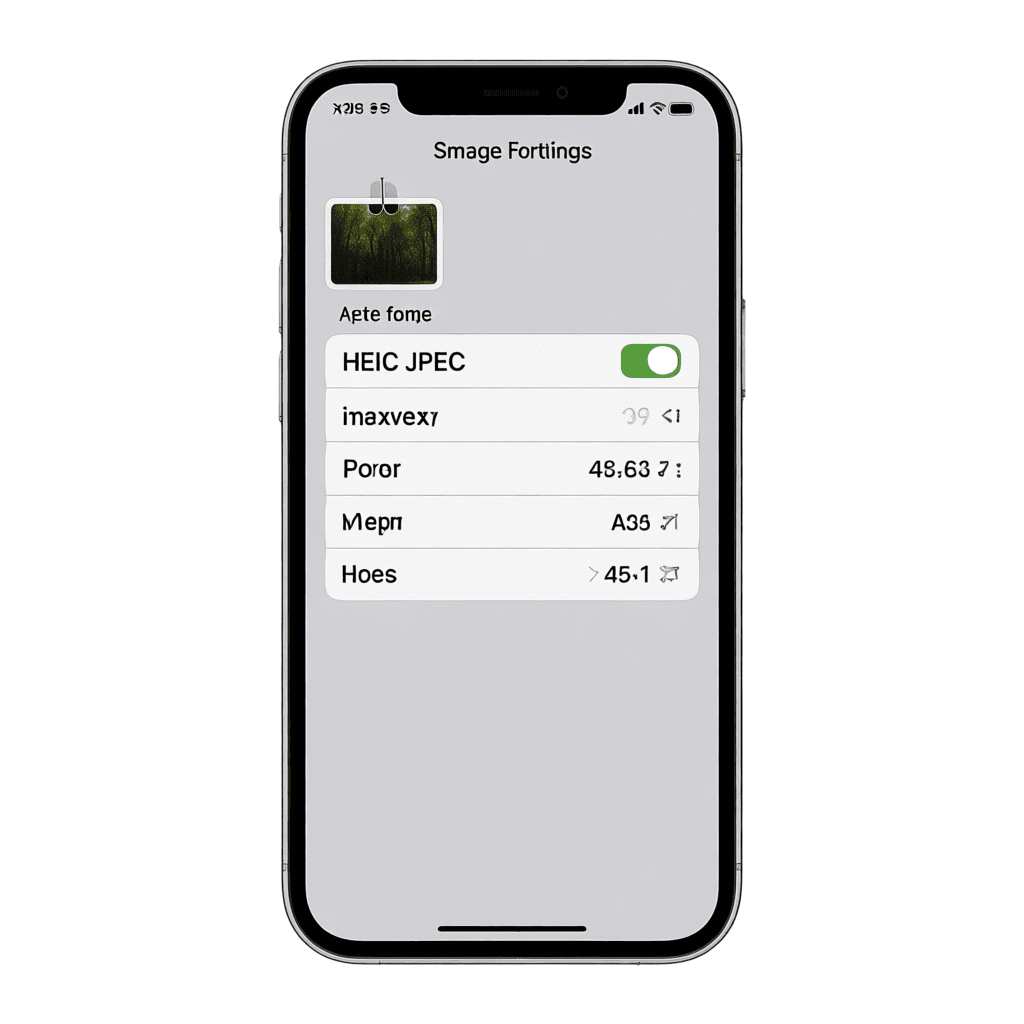
Modern smartphones offer built-in image compression features, which is the simplest and safest starting point. For iPhone users, you can find the “Camera” option in Settings, then select “Format” where you can choose “High Efficiency” mode (using HEIC format) or “Most Compatible” (using JPEG). HEIC format can save nearly 50% storage space while maintaining similar quality. Additionally, iPhone supports “Auto” compression when sharing photos. When you send photos via AirDrop or iMessage, the system automatically adjusts file size based on the target device.
Third-Party Compression Apps
Beyond built-in phone features, there are many excellent third-party image compression apps that typically offer more precise control options and stronger compression capabilities. For iOS users, Image Compressor is a very popular app that supports batch compression, allows previewing quality comparison before and after compression, and lets you precisely control compression quality percentage. Another recommended choice is Photo Compress, which not only supports lossy compression but also provides practical features like adjusting resolution and changing file dimensions.
Batch Compression and Management Strategies
When you need to process large numbers of photos, compressing one by one is clearly impractical. This is where batch compression tools come in handy. Many third-party apps support batch selection and compression features—you can select dozens of photos at once and compress them with one click. For advanced users, using Python scripts with PIL (Pillow) library can create a completely automated compression workflow where you can set target file size or quality percentage, and the script automatically processes entire folders.
Maintaining and Optimizing Quality After Compression
The biggest concern when compressing photos is quality loss. While some compression inevitably leads to quality degradation, you can minimize this loss through certain techniques. First, don’t over-compress—keeping JPEG quality at 70-85% is generally a safe range that significantly reduces file size while maintaining肉眼难以察觉的质量差异。Second, pay attention to the content of the original photo. Complex details (like richly textured fabrics, green leaves) can withstand compression better than simple scenes (like blue sky, solid walls). This is why landscape photos generally tolerate higher compression better than portrait photos.
Frequently Asked Questions
Will photo quality noticeably degrade after compression on phone?
It depends on the compression level. If you keep JPEG quality above 70%, quality loss is usually barely noticeable to the naked eye. However, if you over-compress (below 50%), you may see obvious noise, banding, or detail blurring. It’s recommended to test a few sample photos before batch processing to find the right balance for your needs.
What’s the best way to batch compress phone photos?
You can use batch compression apps like Image Compressor (iOS) or Smush Compressor (Android). For computer-side processing, CopyTrans HEIC or iMazing HEIC Converter support batch importing and converting entire folders. Advanced users can also use Python scripts for fully automated processing.
HEIC vs JPEG: Which format is better for compression?
HEIC saves approximately 50% space compared to JPEG at the same quality level and is currently the most efficient universal image format. However, HEIC has poorer compatibility, and some platforms and devices may not directly support opening HEIC files. If you need broad compatibility, JPEG remains the safer choice.
How to automatically compress photos when sharing via WeChat?
WeChat compresses photos by default when sending to save data. To send original photos, select the “Original Image” option after choosing photos (usually near the send button). Note that original image sending isn’t compressed by WeChat, but the receiver still sees a compressed version.
Can compressed photos be restored to original quality?
No. Once lossy compression is completed, lost image details cannot be recovered. Therefore, it’s recommended to keep safe backups of original photos and only compress copies that need to be shared or archived. This way you can always re-compress from the original files to get better results.
Conclusion
Mobile photo compression is a basic skill that every smartphone user should master. By reasonably using built-in phone features, choosing appropriate third-party tools, and establishing effective batch processing workflows, you can significantly reduce photo size while maintaining acceptable quality, freeing up precious storage space and making sharing more convenient. The key is finding the compression level that suits your needs—don’t blindly pursue the smallest files at the expense of too much quality. Now pick up your phone and start managing your photo library more intelligently.