Why Convert Image to Text?
Every day, millions of people around the world encounter the same frustrating problem: they need text that’s trapped inside an image. Perhaps a colleague emailed a scanned contract with no editable version attached. Maybe you photographed a whiteboard after an important brainstorming session, only to realize the text in your image is completely unsearchable. Or perhaps you found a recipe in an old magazine, photographed it, and now want to email it to a friend — but copying it character by character feels painfully slow. Converting image to text solves all of these problems in seconds.
The traditional workaround has always been manual retyping: sitting down, reading every word, and typing it out yourself. For a single paragraph, that might take a few minutes. For a 20-page scanned document, it becomes an hour-long chore that no one wants to do. Image-to-text conversion — technically called OCR (Optical Character Recognition) — automates this entire process. The software reads your image and outputs real, editable, searchable text that you can copy, edit, translate, or store however you like.
What makes this guide different from others is the focus on browser-based OCR. Most people don’t realize that the text extraction can happen entirely inside your web browser, without any upload to an external server. That means your sensitive documents never leave your device. There’s no account to create, no software to install, and no subscription to pay. You open a webpage, drop in your image, and get your text back. This guide walks you through exactly how that works, why it matters, and how to get the most accurate results possible.
How Browser-Based OCR Works: A Deep Dive
Understanding what happens behind the scenes when you convert image to text can help you get better results and make more informed choices about which tools to use. At its core, OCR is a set of algorithms that analyze the visual patterns in an image to identify characters and words. The technology has been around since the 1950s, but it has improved dramatically in the last decade thanks to advances in machine learning and the availability of large text datasets for training.
Modern browser-based OCR, specifically, relies on JavaScript libraries that run directly in your web browser. The most widely used open-source library is Tesseract.js, which ports the Tesseract OCR engine — originally developed by HP Labs and later maintained by Google — to JavaScript. When you load a web page that uses Tesseract.js, the browser downloads a compact trained neural network model (typically 2–4MB for English) and then processes your image entirely within the browser tab.
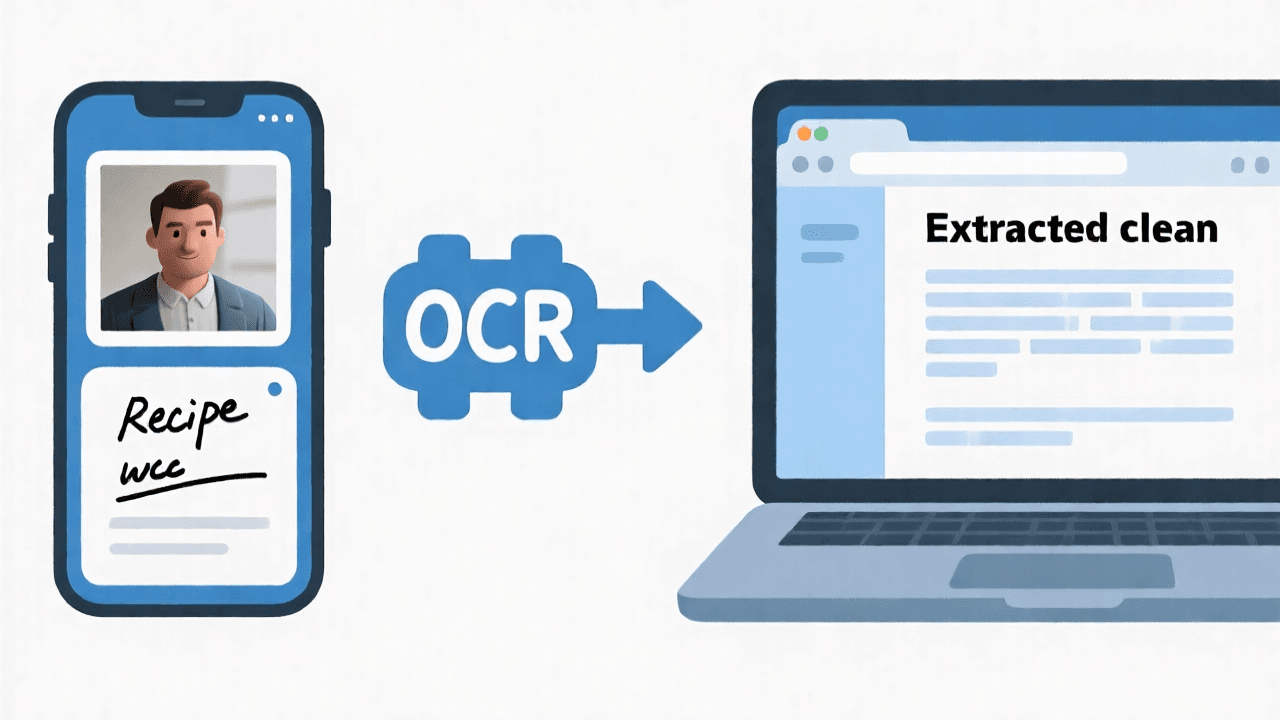
The OCR process itself happens in several stages. First, the image is preprocessed: it’s converted to grayscale to simplify analysis, and contrast is adjusted to separate text from background. Next, the engine identifies distinct regions of text using connected-component analysis — grouping pixels that appear to form characters. Then comes the character recognition stage, where each identified shape is compared against the trained model to determine which letter, number, or symbol it most closely matches. Finally, post-processing algorithms use language models to correct likely errors: for example, recognizing that “c0nvert” is probably “convert” based on context.
The accuracy of this process depends heavily on the quality of the underlying machine learning model. Tesseract.js, for example, is trained on millions of images and achieves approximately 86–90% character accuracy on clean printed English text out of the box. With a well-prepared image of printed type on a white background, accuracy often climbs above 95%. More specialized commercial engines, or engines that have been fine-tuned on specific document types, can push this higher. But for the vast majority of everyday use cases — screenshots, receipts, printed documents — browser-based OCR delivers results that are more than good enough for practical use.
The Complete Step-by-Step Conversion Process
Now that you understand what’s happening under the hood, let’s walk through the actual process of converting an image to text using a browser-based tool. The steps below use ZizzleUp as the reference tool, but the general workflow applies to most browser-based OCR services.
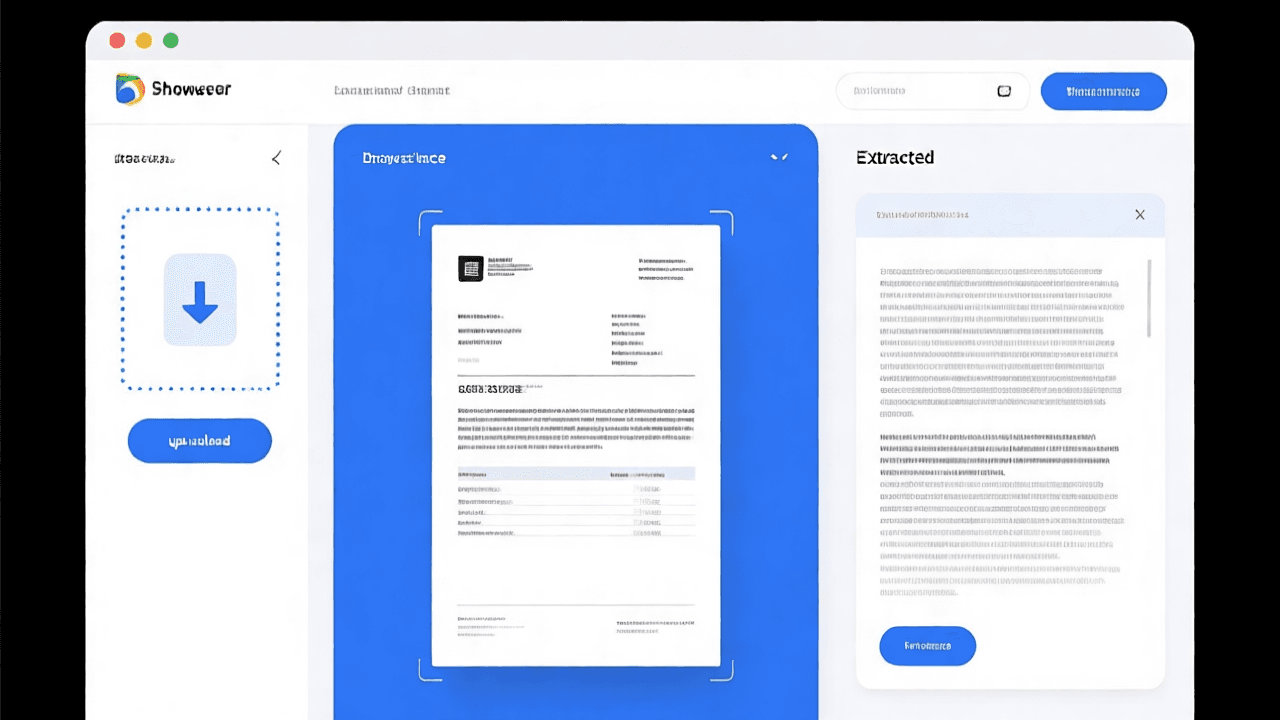
Step 1: Access the OCR Tool. Navigate to the image-to-text conversion page on ZizzleUp. The tool opens in your browser with no installation prompts or sign-up screens. You should see a clearly labeled upload area — typically a large drag-and-drop zone or a prominent “Upload Image” button.
Step 2: Upload or Drop Your Image. You can drag and drop an image file directly onto the upload zone, or click the button to open your file browser. Supported formats typically include JPG, PNG, WebP, GIF, and BMP. You can also paste an image from your clipboard using Ctrl+V (Windows/Linux) or Cmd+V (macOS). The interface should immediately acknowledge your upload, often showing a thumbnail preview of the image you’ve submitted.
Step 3: Wait for Automatic Processing. Once your image is loaded, the OCR engine begins processing automatically. You don’t need to click a “Recognize” button in most modern tools — it starts as soon as the image is ready. Processing time varies based on image size and your device’s processing power, but for a typical photograph or document scan, results usually appear within 1–5 seconds. Larger images or images with lots of detail may take a little longer.
Step 4: Review and Copy the Extracted Text. When processing is complete, the extracted text appears in a results panel alongside or below your image. Take a moment to scan it for obvious errors — common OCR mistakes include confusing “0” and “O”, “1” and “l”, or misreading poorly printed characters. Use the copy button to copy all the text at once, or select specific portions if you only need part of the content.
Step 5: Paste and Use. Open any text editor, word processor, or document management tool and paste the extracted text. You now have fully editable, searchable text that you can edit, format, translate, or save as a document.
Factors That Affect OCR Accuracy
One of the most common questions people have about image-to-text conversion is: “How accurate is it?” The honest answer is: it depends. Several factors influence OCR accuracy, and understanding them can help you consistently get better results.
Image resolution is the single most important factor. For printed text, aim for an image captured at 300 DPI (dots per inch) or higher. A photo taken with a modern smartphone camera typically exceeds this threshold and works well for OCR. Screen captures are also usually fine since they’re already at screen resolution (72–96 DPI for standard displays, which is equivalent to several hundred DPI when printed). The problem arises with low-resolution images, especially those that have been shared through messaging apps or social media — these apps often compress images aggressively, reducing the pixel density that OCR engines need to identify characters accurately.
Font type significantly impacts recognition quality. Standard sans-serif fonts like Arial, Helvetica, and Calibri are among the easiest for OCR engines to recognize because their letterforms are clean, well-separated, and familiar to the trained model. Decorative fonts, script fonts, and highly stylized display fonts are considerably harder to process correctly. Legal documents in Times New Roman or similar serif fonts are usually recognized well, but unusual fonts may require post-editing.
Background complexity matters enormously. OCR performs best when text appears on a plain, high-contrast background — white paper with black text is ideal. Text overlaid on images, colored backgrounds, textured paper, or gridded layouts confuses the engine because it can’t cleanly separate the text from the surrounding visual noise. When photographing documents, try to use a flat, neutral surface and ensure good, even lighting.
Image orientation and skew are often overlooked. Most OCR engines can handle moderate rotation (up to about 45 degrees) but accuracy drops significantly when text is heavily tilted or upside-down. If your document was scanned crookedly, manually rotating it to be level before uploading will noticeably improve results.
For the most common document types, here’s what you can expect in terms of accuracy: printed business letters and reports typically achieve 95–99% accuracy. Receipts and invoices, despite their dense columns and small fonts, usually reach 90–96% accuracy when the image is clear. Handwritten text remains the most challenging category, with accuracy varying widely between 50% and 85% depending on handwriting clarity and the specific OCR engine used.
Practical Use Cases: When OCR Saves Hours of Work
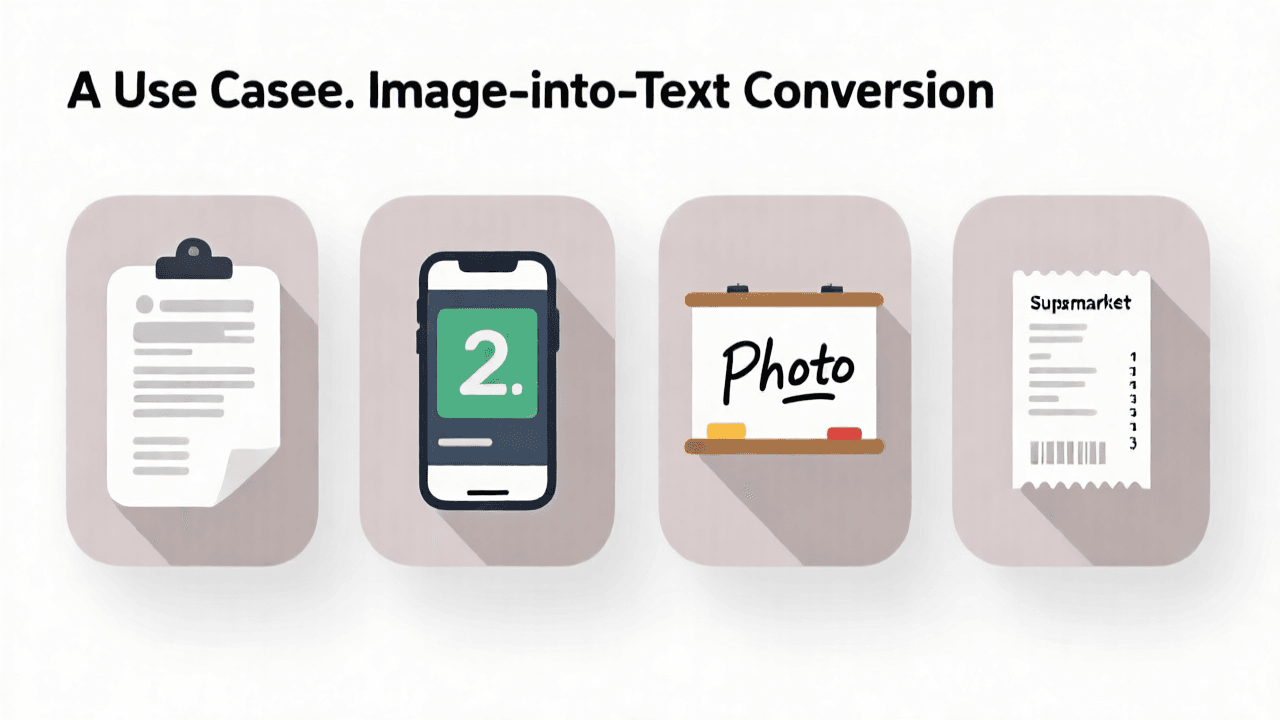
Image-to-text conversion has become one of those tools that, once you start using it regularly, you wonder how you ever managed without it. Here are the most common and practically valuable use cases, drawn from real-world scenarios.
Digitizing printed documents. The classic use case. You have a printed contract, a paper report, or a book chapter that you need to work with digitally. Instead of retyping it, you photograph the page and run it through OCR. This is particularly valuable in industries that still rely heavily on paper records, such as legal, healthcare, and finance, where converting paper archives to searchable digital text can transform how information is accessed and managed.
Extracting data from receipts and invoices. Small business owners, freelancers, and accountants frequently need to extract line items, totals, and dates from purchase receipts. Doing this manually for dozens or hundreds of receipts is tedious and error-prone. OCR automates the data entry, allowing you to quickly extract the key information you need into a spreadsheet or accounting software. The structured nature of receipts (they typically have a consistent layout with a header, itemized list, and total) actually makes them relatively well-suited for OCR, provided the text is printed and the image is clear.
Copying text from screenshots. Developers, researchers, and students often encounter text in screenshots — in code comments, presentation slides, PDF files, or apps that don’t allow text selection — that they need to quote, search, or translate. Rather than typing it out, they can save the screenshot and run it through OCR. This is especially useful when combined with multi-monitor setups where capturing a screenshot is faster than fiddling with print or export options.
Capturing whiteboard and meeting notes. After a brainstorming session or lecture, photographing the whiteboard is common practice. But those photos are only useful for as long as you can read them — they’re not searchable, not editable, and hard to share in a useful format. OCR converts your whiteboard photo into editable text that you can paste into a meeting notes document, send via email, or add to a project management tool.
Processing business cards. At conferences and networking events, collecting business cards is routine, but manually entering each contact’s details into your address book is time-consuming. Photographing the business card and running OCR extracts the name, title, company, phone number, and email address, which you can then paste directly into your contacts app. Modern OCR engines handle the unusual layouts of business cards — with text running in multiple directions and columns — reasonably well.
Browser OCR vs. Server-Side OCR: Which Should You Choose?
Not all OCR tools are built the same way. The fundamental difference between browser-based (client-side) OCR and server-side OCR affects everything from your privacy to the quality of results you can expect.
Server-side OCR works by uploading your image to a remote server — typically operated by the OCR service provider — where the text extraction is performed using powerful server-grade hardware and sophisticated proprietary models. The extracted text is then sent back to you. This approach has genuine advantages: servers typically run more powerful OCR engines than what’s feasible in a browser, they can handle very large documents efficiently, and they often support a wider range of languages and document types out of the box.
However, server-side processing comes with a significant privacy cost. When you upload an image to a server, your data travels across the internet to a remote machine that you don’t control. The service provider’s privacy policy governs what happens to your image and the extracted text — it might be stored temporarily for processing, used to improve the service, or shared with third parties. Even with reputable providers that promise not to store images, you’re placing trust in their infrastructure and security practices. For sensitive documents — medical records, legal contracts, financial statements, personal correspondence — this is a meaningful risk that many people are understandably uncomfortable with.
Browser-based OCR eliminates this entire category of concern. When you use a client-side tool like ZizzleUp, your image is processed entirely within your web browser using JavaScript. The image never leaves your device. There is no upload, no server, no third-party data handling. From a data security perspective, this is categorically more private — it’s not a matter of trusting a company’s privacy policy, it’s a matter of the data path simply not existing.

Performance differences have narrowed considerably as browser-based OCR has matured. For standard documents, receipts, and screenshots — which represent the vast majority of real-world use cases — the accuracy gap between browser-based and server-side OCR is now quite small. Modern JavaScript-based OCR engines like Tesseract.js are highly capable, and for most practical purposes, the difference in output quality won’t matter. Speed is also competitive for typical image sizes.
Where server-side OCR still holds an advantage is in specialized, complex, or very high-volume scenarios. If you need to process thousands of pages of historical documents with unusual fonts, process handwriting at scale, or handle highly complex multi-column layouts with tables and figures, the more powerful engines available on dedicated servers will generally produce better results. But for the 95% of everyday image-to-text needs — converting a screenshot, extracting receipt data, digitizing a business letter — browser-based OCR is more than sufficient and far more privacy-preserving.
Privacy Benefits and Regulatory Compliance
Data privacy has become one of the most important considerations in how we use digital tools, and it’s an area where browser-based OCR genuinely shines. Understanding the privacy implications of your image processing choices matters, especially if you work with sensitive information or operate in regulated industries.
When data never leaves your device, it cannot be intercepted, breached, or misused by third parties. This is not a hypothetical concern. Data breaches at cloud service providers are a regular occurrence, and images uploaded to OCR services have, in documented cases, been stored insecurely or accessed by unauthorized parties. With browser-based processing, the attack surface is essentially zero: there is no server to breach, no data in transit to intercept, and no third party in the chain of custody.
From a regulatory compliance standpoint, client-side OCR eliminates entire categories of legal risk. The General Data Protection Regulation (GDPR) in the European Union imposes strict requirements on how personal data is collected, processed, and stored — requirements that apply the moment data leaves a user’s device and enters a service provider’s system. Under GDPR, the controller and processor of personal data have significant obligations: they must have a lawful basis for processing, implement appropriate security measures, and be transparent about what happens to the data. When OCR happens entirely in the browser, none of these obligations apply, because no personal data is processed by a third party.
Similarly, the Health Insurance Portability and Accountability Act (HIPAA) in the United States governs how protected health information (PHI) is handled. Healthcare organizations that need to digitize patient records face strict requirements about where and how that processing occurs. Browser-based OCR is HIPAA-compliant by design — there is no transmission of PHI to an external processor. The same logic applies to financial services regulations and any other framework that governs sensitive data handling.
Practical privacy tips for OCR users: even with a browser-based tool, take a moment to verify that the tool you’re using genuinely processes data locally. Check the source code if possible, or look for documentation confirming that no uploads occur. Be aware that some tools claim to be “private” but still send anonymized analytics or usage data to third parties. ZizzleUp’s commitment to local processing means your images are never transmitted, making it a genuinely privacy-first choice for image-to-text conversion.
Common Mistakes to Avoid for Better Results
OCR technology has become impressively capable, but it still requires reasonably well-prepared input images to produce excellent results. A few common mistakes consistently undermine accuracy and lead to frustration. Avoiding them takes almost no extra effort and can dramatically improve what you get back.
Using heavily compressed images. Images that have passed through multiple sharing platforms — sent through WhatsApp, posted on Instagram, uploaded and downloaded from cloud storage — often look fine to the human eye but have been significantly degraded by compression algorithms. JPEG compression in particular introduces artifacts that look like noise to OCR engines. If the image you’re trying to process has been through multiple sharing cycles, try to obtain the original, uncompressed version. When photographing documents, use the highest quality setting on your camera.
Ignoring lighting conditions. Shadows, glare, and uneven lighting are among the most common causes of poor OCR results. A document photographed under a desk lamp with harsh shadows on one side will have areas where text becomes unreadable to the software. Photograph documents in diffuse, even lighting — near a window on an overcast day, or under a flat overhead light. Avoid using your phone’s flash, which creates hotspots and reflections on glossy paper.
Photographing through glass or plastic. Restaurant menus behind plexiglass, whiteboard photos taken through a glass conference room wall, receipts photographed through a phone screen protector — reflections and refractions through transparent materials create interference patterns that confuse OCR algorithms. Move closer and photograph the document directly, or print a fresh copy if you need to photograph it rather than pick it up.
Processing images with complex backgrounds. A PDF of a magazine page or a webpage screenshot where the text sits on top of an image or gradient background is harder to OCR than a clean document. If you have the option to switch to a dark mode or high-contrast view of an app or website before taking a screenshot, do so. For photographs of printed pages, try to crop closely around the text area and avoid including the surrounding surface in the image.
Expecting perfection on handwriting. This is perhaps the most important expectation to manage. Handwriting recognition is genuinely hard because every person’s handwriting is unique, varies in quality even within a single document, and often lacks the consistent letterforms that trained OCR models have learned to recognize. On clean, deliberate handwriting in block capitals, modern OCR can achieve 80–90% accuracy. On cursive script or rushed, informal handwriting, accuracy drops substantially. If you need to digitize handwritten notes, expect to spend time reviewing and correcting the output. Taking steps to improve your original note-taking legibility will pay dividends when it comes time to process those notes.
Comparing Browser OCR to Popular Alternatives
If you’re evaluating how browser-based OCR stacks up against the alternatives, here’s an honest assessment of where different tools stand and when each one makes sense.
Google Lens is one of the most popular mobile OCR tools, available in the Google app and as part of Google Photos. It uses Google’s cloud-based OCR engine, which is extremely powerful and supports an impressive range of languages and document types. The accuracy is generally excellent. The tradeoff is privacy: your image is sent to Google’s servers for processing. For casual, non-sensitive use, Google Lens is a strong option. For sensitive documents, it’s less ideal.
Adobe Acrobat has built-in OCR that activates when you scan or open an image-based PDF. Adobe’s OCR engine is specifically optimized for PDF documents and produces high-quality results, particularly for scanned documents with complex layouts. It’s a paid product, though, and it requires either Acrobat installed or a subscription to Acrobat online. For one-off PDF OCR tasks, the cost may be hard to justify.
Microsoft OneNote includes OCR functionality that activates when you right-click on an embedded image and select “Copy Text from Picture.” OneNote’s OCR is surprisingly capable, especially for English text, and it’s free if you already have Windows or Microsoft 365. The limitation is that it’s embedded in a note-taking app — it’s not a dedicated OCR tool, so the workflow isn’t as streamlined for pure text extraction.
ABBYY FineReader is widely considered one of the most accurate desktop OCR solutions available, particularly for large volumes of complex documents. It supports over 190 languages and handles challenging layouts with tables, columns, and embedded graphics with impressive accuracy. It’s a premium paid product with a correspondingly premium price tag, making it most suitable for professional use cases where accuracy is paramount and budget allows.
Browser-based OCR like ZizzleUp occupies a specific niche in this landscape: it’s free, requires no installation, respects your privacy absolutely, and handles the vast majority of everyday OCR tasks — screenshots, receipts, printed documents, screenshots — with sufficient accuracy. It’s the right choice when you want a fast, frictionless, private way to extract text from an image without creating an account or paying for software. For specialized, high-volume, or legally sensitive OCR tasks, you may still want a dedicated professional tool.
Browser Compatibility and Mobile Considerations
One practical concern that comes up frequently is whether browser-based OCR works well across different browsers and devices. The good news is that modern web standards have made JavaScript-based OCR remarkably consistent across platforms.
All major desktop browsers — Google Chrome (including Chromium-based Edge), Mozilla Firefox, Apple Safari, and Brave — support the Web APIs that Tesseract.js and similar OCR libraries rely on. Chrome tends to offer the smoothest experience due to its V8 JavaScript engine, which is highly optimized for compute-intensive tasks, but the difference in practical use is minimal for typical image sizes. Firefox’s SpiderMonkey engine handles the workload well, and Safari’s JavaScriptCore has improved significantly in recent versions.
On mobile devices, the experience is surprisingly comparable to desktop. Both iOS Safari and Android Chrome run the same OCR JavaScript libraries effectively, and mobile devices’ powerful modern processors are more than capable of handling image processing tasks in real time. The main practical difference on mobile is around file management: you may need to grant the browser permission to access your photo library, and the copy-paste workflow for moving extracted text into other apps is a little more involved than on desktop.
One consideration for older or low-end devices: OCR is computationally intensive, and very old hardware (devices more than 5–7 years old) may process images noticeably slower than modern phones or computers. However, for the vast majority of users with devices from the last 3–4 years, performance is snappy and responsive. If you find processing is slow on a particular device, try reducing the image size slightly before uploading — most OCR engines work well on images in the 2–4 megapixel range, and a smaller image processes faster without significantly impacting accuracy.
Frequently Asked Questions
How accurate is image to text conversion?
For clear, printed text on a plain background, modern OCR engines typically achieve 95–99% character accuracy. Receipts and invoices, despite their small fonts and dense layout, often achieve 90–96% accuracy. The main factors that reduce accuracy are low image resolution, complex backgrounds, decorative fonts, and handwritten text. If your image is clear and the text is printed in a standard font, you can expect results that require only minimal editing.
What types of documents can I convert to text?
Browser-based OCR handles a wide range of document types including business letters, contracts, receipts, invoices, business cards, screenshots, whiteboard photos, and printed reports. It also works on text embedded in images from websites, PDFs (when saved as images), and presentations. Handwritten documents are the most challenging category, and accuracy varies significantly based on handwriting clarity and the specific OCR engine being used.
Is my image data kept private?
When using a browser-based OCR tool like ZizzleUp, your image is processed entirely within your web browser and never uploaded to any server. This means your image and its contents never leave your device. There is no data transmission, no server storage, and no third-party access to your documents. This makes browser-based OCR categorically more private than server-based alternatives. You can confirm this by disconnecting from the internet after loading the page — the OCR will still work.
What image formats does the tool support?
Most browser-based OCR tools support common web image formats including JPEG, PNG, WebP, GIF, and BMP. Some tools also support HEIC (the format used by newer iPhones), though HEIC files may need to be converted to JPEG or PNG first depending on the tool. The most important factor for accuracy is not the format itself but the quality and resolution of the image — a high-quality JPEG and an equivalent PNG will produce nearly identical OCR results.
Can I edit the extracted text after conversion?
Yes, absolutely. Once text is extracted via OCR, it becomes standard, editable text just like anything you type yourself. You can copy it into any text editor, word processor, spreadsheet, email client, or content management system. You can edit, format, translate, search within it, and save it in any format. The editable nature of the output is one of the primary advantages of OCR over simply leaving text trapped in images.
Is Google Lens a better alternative than browser-based OCR?
Google Lens is a powerful OCR tool with excellent accuracy and broad language support, and it handles a wide variety of real-world objects and text types impressively well. The main difference is that Google Lens processes your images on Google’s servers rather than on your device, which means your image data travels to Google’s infrastructure. For casual, non-sensitive use, Google Lens is an excellent choice. For sensitive documents where privacy is a priority, browser-based OCR provides a meaningful advantage since no data leaves your device at all.
Why does OCR sometimes confuse similar-looking characters?
OCR engines can sometimes confuse characters that look similar, particularly 0 (zero) and O, 1 (one) and l (lowercase L), and in some fonts S and 5 or B and 8. This happens because the recognition algorithm is working from visual pixel patterns rather than semantic understanding — it sees a shape and tries to match it to the most similar character in its training data. These errors are usually easy to spot and correct during review, especially if you’re working with text where numbers and letters appear in predictable contexts. Using higher quality images and standard fonts significantly reduces these confusion errors.
Conclusion
Converting image to text is one of those capabilities that has crossed over from specialized technical tool to everyday productivity essential. Whether you’re a student digitizing lecture notes, a small business owner processing receipts, a developer extracting code from a screenshot, or anyone who has ever wished they could edit text they found in a photograph, OCR makes that possible in seconds.
Browser-based OCR tools represent a meaningful step forward in making this technology accessible and private. By processing images entirely on your device, they eliminate the privacy tradeoffs that have traditionally come with cloud-based OCR services. You get fast, capable text extraction without creating an account, paying a subscription, installing software, or trusting a third party with your data. The accuracy of modern JavaScript OCR engines is genuinely impressive for the full range of everyday use cases — screenshots, printed documents, receipts, and business cards.
The key to consistently good results is understanding the factors that influence accuracy: image quality, resolution, lighting, and background simplicity are the variables you can control. Taking a few extra seconds to capture a clear, well-lit, high-resolution image pays off directly in better text output. And when you need to handle sensitive documents, the privacy advantage of client-side processing isn’t just a nice feature — it’s the difference between keeping your data private by policy and keeping it private by architecture.
Try it out on your next document, screenshot, or photograph. You’ll be surprised at how capable the technology has become, and how natural the workflow feels. The text has always been there in your images — now it’s just a few clicks away from being editable, searchable, and useful.