The Power and Necessity of Batch Image Processing
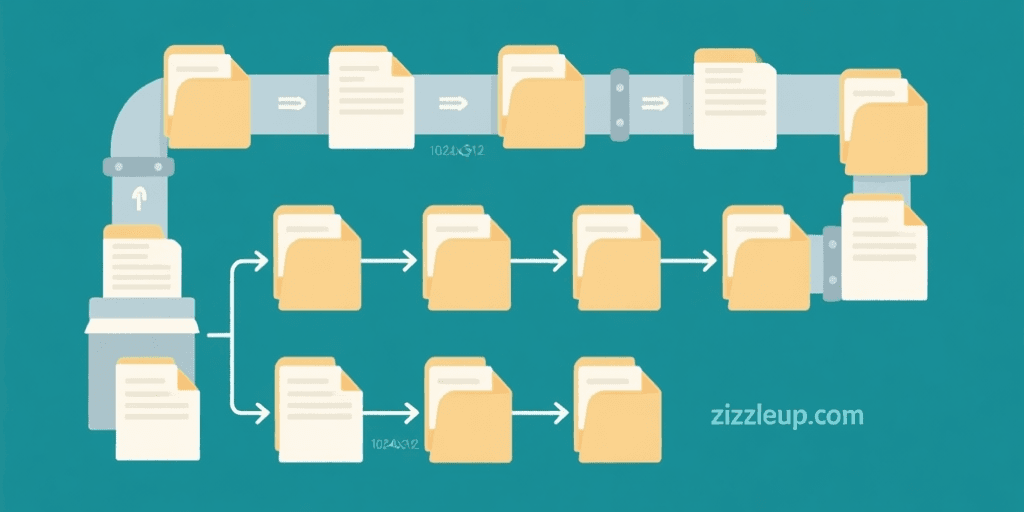
Images drive modern communication in ways we often take for granted. Whether you run an e-commerce store or manage social media for a brand, processing multiple images efficiently matters enormously. Opening each image individually wastes hours of valuable time. Batch processing solves this problem elegantly. It applies changes to entire image collections in seconds rather than minutes or hours.
Consider a small business with 500 product photos that need resizing and converting. Doing this individually takes over 4 hours of tedious work. Batch tools can complete the same task in just a few minutes. The time savings multiply quickly for larger projects. A photographer with 5,000 event photos benefits even more dramatically from batch processing workflows.
Beyond pure speed, batch processing ensures consistency across your image collection. Manual editing creates subtle differences between images. These inconsistencies become visible in product galleries and portfolios. Batch processing applies identical settings to every single image. The result looks professional and cohesive.
Moreover, modern batch processing tools offer features that were impossible with manual editing. You can apply watermarks automatically. You can resize images to exact dimensions for different platforms. You can convert formats in bulk while maintaining quality. These capabilities transform how businesses handle their visual content. The efficiency gains allow teams to focus on creative work rather than repetitive tasks.
Understanding the Batch Processing Workflow
Every batch workflow follows a similar pattern. First, you select and import images. Most tools support dragging entire folders directly. This approach preserves your organizational structure automatically. You do not need to reorganize files before processing them. The tool reads your folder structure and maintains it in the output.
Next, you configure the operations you want to apply. Common operations include resizing, format conversion, compression, and watermarking. These settings apply uniformly across all selected images. Most tools let you create presets for common tasks. This saves time when you perform the same operations regularly. For example, you might create an Amazon product image preset and an Instagram preset.
The execution phase processes images according to your settings. Modern tools use multi-threading to speed up processing significantly. They can process multiple images simultaneously on multi-core processors. Once complete, you receive processed images with options for automatic organization. Some tools even rename files based on patterns you define. You can include dates, counters, or custom text in filenames.
Most professional batch processors support chaining multiple operations. You might resize first, then compress, then add a watermark. The tool applies these operations in sequence. This creates a complete workflow that handles all your needs in one pass. Chaining eliminates the need for multiple processing stages.
Essential Operations in Batch Processing
Resizing images stands as the most common batch operation. Different platforms require different dimensions. Social media sites have specific aspect ratios that change frequently. E-commerce platforms enforce maximum sizes for product images. Batch processing handles all these requirements automatically without manual cropping for each image.
Format conversion follows resizing in popularity. Converting between PNG, JPEG, WEBP, and other formats happens in bulk. WEBP offers the best compression for modern web use. However, you might need PNG for transparency or JPEG for compatibility with older systems. Batch tools handle all these conversions seamlessly while maintaining quality settings.
Compression reduces file sizes without visible quality loss. This improves website loading times dramatically. Studies show that users abandon slow sites within seconds. Compressed images keep visitors engaged and improve conversion rates. Batch compression applies consistent quality settings across all images. This ensures uniform file sizes throughout your collection.
Watermarking protects your intellectual property. Adding logos or text to images prevents unauthorized use. Batch watermarking applies the same watermark to every image. You can position watermarks automatically in corners or centers. You can also control their opacity and size. This creates consistent brand presence across all your images.
Best Practices for E-commerce Image Processing
E-commerce demands consistent, high-quality images that convert visitors into buyers. Product photos directly influence purchasing decisions more than any other factor. Low-quality images increase return rates and damage brand perception permanently. Your images must look professional and trustworthy to maximize sales.
Start with consistent naming conventions for your files. Include product codes and image type indicators in filenames. For example, SKU-001-front.jpg or PROD-RED-001.webp. This makes inventory management much easier. It also helps when you need to find specific images later. Create a naming system that works for your business and stick to it consistently.
Then resize images to match platform requirements carefully. Different platforms need different dimensions. Amazon product images require specific aspect ratios around 1:1. Your own website might need different sizes for different page positions. Create presets for each platform to ensure consistency. Test the results before processing thousands of images.
Compression follows resizing in the workflow. Balance quality against file size for fast loading. Page speed affects search engine rankings directly. It also impacts user experience and conversion rates. Test different compression levels to find the optimal balance for your specific images.
Finally, convert formats for maximum compatibility. WEBP offers the best compression and quality for modern e-commerce. Most browsers support it completely now. However, keep PNG originals for maximum flexibility. You never know when you might need the highest quality version for print or other uses.
For maximum efficiency, consider using an online image compression tool to reduce file sizes before uploading to your store. You can also use an image format converter to handle bulk format conversions easily.
Social Media Image Processing Strategies
Social media requires images for multiple platforms simultaneously. Each platform has specific size requirements and aspect ratios that change often. One piece of content might need five different versions for optimal display. This creates enormous workload without batch processing tools.
Create processing templates for each platform you use. Save these templates for repeated use over time. This approach saves time while ensuring consistent branding across all posts. Your audience receives a unified visual experience regardless of where they view your content.
Instagram posts need square images with 1:1 aspect ratios. Stories require 9:16 vertical formats. Facebook covers need specific dimensions around 820 by 312 pixels. Twitter has its own requirements that differ for posts and headers. LinkedIn prefers professional aspect ratios for company pages. Managing all these variations manually would be impossible for active accounts.
Consider mobile optimization when processing social media images. Most social media users access platforms on phones. Cellular connections can be slow in many areas. Ensure your images load quickly on mobile data connections. Compress aggressively for mobile delivery while maintaining visual quality.
Content calendars benefit from batch processing workflows dramatically. Schedule your content creation in batches weekly or monthly. Process all images for the upcoming period in one session. This approach dramatically reduces the time spent on social media management.
Choosing the Right Batch Processing Tools
Free tools work well for basic needs in many situations. Most can handle resizing, format conversion, and compression without cost. However, they often lack advanced features. Paid tools offer AI background removal, automatic enhancement, and cloud processing capabilities. Evaluate your needs before committing to any tool.
Browser-based tools provide convenience that cannot be matched by desktop software. They work without installation and sync across devices automatically. You can process images on any computer with internet access. However, they may have file size limits for uploads. Large batches might require multiple uploads or premium subscriptions.
Desktop software offers maximum control and privacy for sensitive work. It handles large volumes without uploading to external servers. This benefits privacy-sensitive workflows enormously. Your images never leave your computer during processing. For businesses with sensitive product images, this matters greatly for security.
Consider your specific needs when choosing tools. Small businesses might prefer browser-based solutions for their flexibility and low cost. Large enterprises need desktop software for control and security. Photographers need professional-grade tools with advanced features. Test multiple tools before committing to find the best fit.
Optimizing Your Batch Processing Workflow
Organization matters as much as the tools themselves for efficiency. Create a clear folder structure before processing any images. Separate source files from processed files clearly. This prevents accidental overwrites and makes finding results easier later. A good folder structure saves time throughout your workflow.
Test your settings on a small sample first before full processing. Process five to ten images and check the results carefully. Look for quality issues, cropping problems, or other errors. Adjust settings if needed before processing the entire batch. This prevents wasting time on incorrect processing that requires starting over.
Document your workflows for consistency over time. Write down the settings you use for each task type. This helps when you need to reproduce results later. It also helps team members process images consistently. Good documentation reduces errors and training time.
Backup original files before processing any images. Keep your source images safe and untouched. Processed images can always be recreated from originals if needed. Originals cannot be recovered if lost or damaged through processing errors. Use a dedicated backup drive or cloud storage for originals.
Common Mistakes to Avoid
Many users apply too much compression when processing images. This creates ugly artifacts that damage image quality visibly. Compression should reduce file size without noticeable quality loss. Find the balance between file size and visual quality through testing. What works for one image type may not work for another.
Ignoring aspect ratios causes layout problems on websites and social media. Images might appear stretched or cropped incorrectly without proper ratios. Always check target dimensions before processing. Use crop tools when necessary to maintain proper proportions. Many tools can fit images automatically while preserving aspect ratios.
Forgetting to backup originals leads to permanent data loss in worst cases. Always keep your source images safe and accessible. Process copies rather than originals whenever possible. This preserves your ability to reprocess images later if needed. Take time to verify backups completed successfully.
Skipping quality checks on processed images creates problems that are hard to fix later. Always spot check batch results after processing completes. Look for unexpected artifacts, color shifts, or errors. Catching problems early saves time fixing them before too much work accumulates.
Advanced Techniques for Professionals
Automation transforms batch processing from time-saving to revolutionary for large teams. Many tools support watched folders that monitor for new images. Processing triggers automatically when new images appear in specific folders. This creates a completely hands-off workflow that processes images as they arrive.
Scripting extends capabilities further for custom workflows. You can create custom processing pipelines for unique requirements. These can include conditional logic and complex operations that handle edge cases. Professional tools support scripting in various languages like Python or JavaScript.
Cloud processing handles massive batches efficiently when local resources are insufficient. Upload images for server-side processing on powerful hardware. Download results when complete for local use. This approach works well when your computer is not powerful enough for large jobs.
Integration with other tools creates seamless end-to-end workflows. Connect batch processors with content management systems for automatic publishing. Link them with e-commerce platforms for streamlined product uploads. The possibilities are nearly endless with good integration planning.
Processing for Different Use Cases
E-commerce product images require different handling than social media graphics. Product images need high resolution to show details clearly. They also need consistent lighting and backgrounds for professionalism. Consider using dedicated product photography workflows for best results.
Real estate photography generates hundreds of images per property. Batch processing handles resizing for multiple listing sites efficiently. Different platforms need different image sizes and quality levels. Create presets for each real estate platform to speed up workflows.
Event photography produces the largest image volumes typically. Photographers need quick turnaround times after events. Batch processing enables overnight delivery of processed images. Use presets for common event types to speed processing further.
Social media managers handle images for multiple clients simultaneously. Batch processing enables efficient handling of diverse client needs. Create client-specific presets for consistent branding. Organize outputs by client to maintain clear separation.
Understanding Image Formats and When to Use Each
Choosing the right image format impacts quality and file size significantly. JPEG works best for photographs with many colors and gradients. It compresses well but loses some quality. PNG preserves all details and supports transparency. Use PNG for logos and graphics with sharp edges.
WEBP provides the best of both worlds in most situations. It compresses better than JPEG while maintaining quality. It also supports transparency like PNG. Most modern browsers support WEBP completely. This makes it the default choice for web images today.
GIF remains useful for simple animations despite limitations. It supports only 256 colors, which creates banding in photos. However, nothing else matches it for short looping animations. Use GIF for small animated graphics like reaction images.
HEIF and other formats offer even better compression eventually. However, browser support remains limited for these newer formats. Stick with WEBP, JPEG, and PNG for maximum compatibility. Convert to newer formats only when you control the viewing environment.
Color Space Considerations for Professionals
Color space affects how colors appear in your images across different devices. sRGB remains the safest choice for web and social media. Most browsers and devices display sRGB correctly. Using wider color spaces can cause unexpected results for viewers.
Adobe RGB provides more colors for print production. Professional photographers often shoot in Adobe RGB. However, images must be converted to sRGB for web use. Batch converters can handle this conversion automatically.
Display P3 offers another option for modern displays. It provides colors between sRGB and Adobe RGB. However, not all browsers support Display P3 correctly. Test your images across multiple devices before finalizing.
Always verify color space settings before processing batches of images. Mismatched color spaces cause colors to appear washed out or oversaturated. Consistent color management ensures your images look their best everywhere.
Quality vs File Size Optimization
Finding the right balance between quality and file size requires testing. Start with quality settings around 80% for JPEG and WEBP. This usually provides a good balance for most web uses. Lower quality settings create smaller files but visible artifacts appear.
Monitor file sizes across your entire image collection. Set maximum file size targets based on your needs. A homepage hero image might need to stay under 200KB. Product detail images might allow 500KB. Social media images have their own size limits to consider.
Use progressive loading options when available. Progressive images display gradually as they load. This improves perceived performance even if file sizes remain similar. Many modern image formats support progressive loading by default.
Consider responsive images for web use. Serve different sized images to different devices. Mobile users download smaller files while desktop users get full resolution. This optimizes performance across all device types.

Frequently Asked Questions
How long does batch processing take?
Processing time depends on image count and operation complexity significantly. A hundred typical photos might take 5-10 minutes with modern tools. Very large batches could take an hour or more depending on hardware. Modern multi-core processors speed up processing dramatically compared to older systems.
Can I process different image sizes together?
Yes, most tools handle mixed sizes without any issues. Set target dimensions rather than specific widths for best results. Images scale proportionally to fit the target dimensions automatically. This flexibility makes batch processing much more useful for diverse collections.
Do batch tools preserve image quality?
Quality preservation depends entirely on your specific settings. Use high-quality presets for important images that need detail. Test with a small batch first to find optimal settings. Adjust settings until you achieve the quality level you need consistently.
Which format should I use for e-commerce?
WEBP offers the best balance of quality and file size for modern e-commerce. Most modern browsers support it completely now. However, keep PNG originals for maximum flexibility. You can always convert again later if needed for new platforms.
Can I automate batch processing completely?
Yes, many tools support full automation through watched folders. Processing triggers automatically when new images appear in monitored folders. This creates a truly hands-off workflow that saves enormous time daily. Setup once and let the tools handle processing automatically.