Resizing many images at once saves enormous time. You do not need expensive software to handle bulk image processing. This guide shows you how to resize multiple images quickly using free online tools. You will learn efficient workflows that handle dozens or hundreds of images effortlessly.
Why Batch Resizing Matters
Processing images one by one consumes hours. A photographer with 500 photos faces a tedious task. A business updating product images needs efficiency. Batch processing handles all images simultaneously. This automation transforms workflows dramatically.
Consistent sizing improves website appearance. All product images should match dimensions. Profile pictures need uniform sizing. Batch resizing ensures uniformity across entire image collections. Manual resizing inevitably creates inconsistencies.
Online tools handle batch processing without installation. You avoid software costs and compatibility issues. Your computer does not struggle with resource-heavy programs. Browser-based tools leverage cloud processing when needed.
How Online Batch Resizing Works
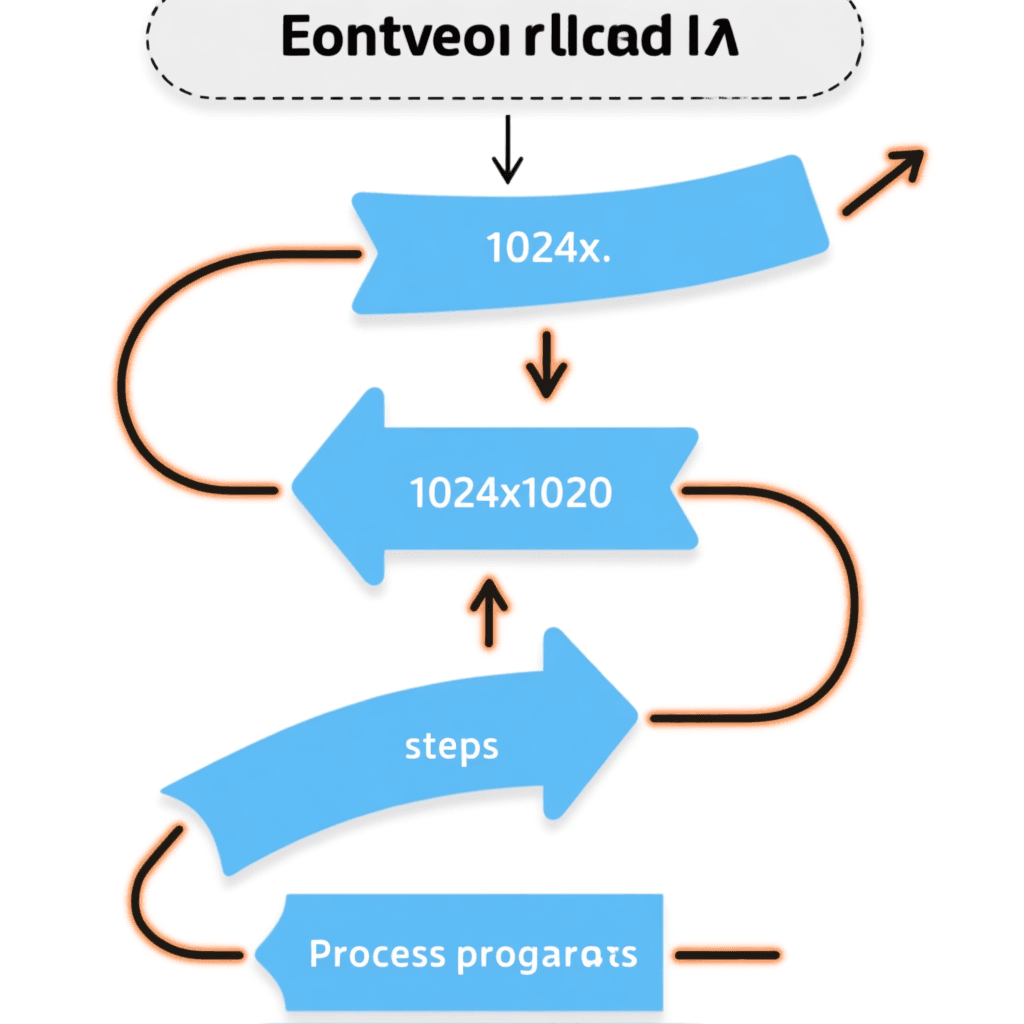
Upload multiple images to the tool at once. Most tools accept drag-and-drop for easy uploading. The system processes each image using your settings. Download individual results or a zip archive. This simple workflow handles large batches efficiently.
Browser-based tools process images on your device. Large batches may take longer to process. However, privacy remains protected since images never leave you. Some tools use cloud processing for faster results. Choose the approach matching your privacy needs.
Quality settings affect output results. Higher quality produces larger files. Lower quality creates smaller files. Test your settings on a few images first. Adjust until results match your requirements.
Best Practices for Batch Resizing
Organize images into logical groups before processing. Similar images can share settings. Different types might need different approaches. Grouping prevents mistakes and saves time.
Choose appropriate output dimensions. Consider how you will use the images. Social media has specific size requirements. Websites often need multiple sizes. Plan your output sizes before starting batch processing.
Maintain aspect ratio to prevent distortion. Crop images separately if needed. Batch resizing works best when all images share similar proportions. Consider this when selecting images for processing.
Common Batch Resizing Scenarios
E-commerce product images need consistent sizing. All photos should display at the same dimensions. This creates a uniform shopping experience. Batch resizing handles dozens of product photos quickly.
Social media managers need images in multiple sizes. Each platform requires different dimensions. Batch processing converts your master images into all required sizes. This automation saves significant time.
Website owners optimize images for fast loading. Large images slow down websites. Batch resizing creates appropriately sized images for each use. This optimization improves user experience and search rankings.
Using Our Free Batch Resizing Tool
Our batch resizing tool handles multiple images easily. Upload your images and choose output dimensions. The tool processes all images automatically. Download results as individual files or a combined archive.
The tool preserves image quality during resizing. You can adjust quality settings to balance file size. Preview results before processing large batches. This feature helps ensure optimal settings.
Try our compression tools after resizing. Smaller dimensions combined with compression deliver the best results. This workflow optimizes images for any use case.
Common Questions About Batch Resizing
How many images can I resize at once?
Most online tools handle 20-50 images per batch. Some support larger batches but take longer to process. Split very large collections into multiple batches if needed.
Does batch resizing reduce quality?
Resizing itself does not necessarily reduce quality. Downscaling from large to small can preserve quality. However, upscaling always loses quality. The quality settings also affect output files.
Can I resize images to exact dimensions?
Yes, most tools let you specify exact width and height. Images may be cropped or padded to achieve exact dimensions. Check the tool settings for fit options.
Do I need to install anything for batch processing?
No, browser-based tools require no installation. Upload your images and process them online. This approach works on any computer with a browser.
Can I resize different sized images to the same output?
Yes, batch resizing handles images of varying sizes. All output images will share your specified dimensions. The tool adjusts each image appropriately.
Summary
Batch image resizing saves tremendous time and effort. Free online tools handle large batches without software installation. Follow best practices for consistent, high-quality results. Use our free batch resizing tool to process multiple images quickly. Combine resizing with compression for fully optimized images.